
 By Robert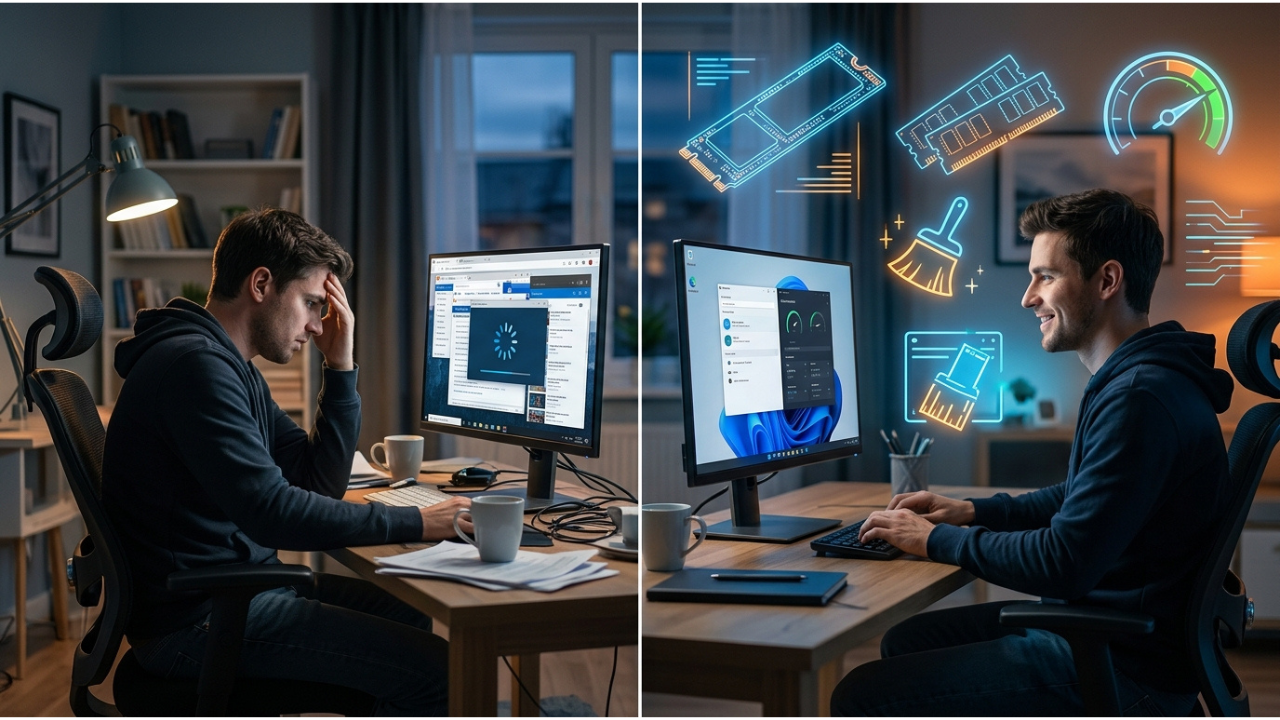
Have you ever stared at a loading screen, watching that spinning wheel go round and round, wondering if your computer secretly hates you?
You are not alone. A slow computer is one of the most frustrating tech problems people face every day — and the good news is, you do not need to buy a new one to fix it.
Whether your PC takes forever to boot, your browser feels sluggish, or apps keep freezing, this guide has you covered. We have put together 15 actionable, beginner-friendly tips to help you speed up your computer starting today — most of them are completely free.
Let’s dive in.
Why Is My Computer Running Slow?
Before we jump into the fixes, it helps to understand why your computer slows down in the first place. Here are the most common culprits:
- Too many startup programs running in the background
- Low disk space leaving no room to breathe
- Outdated software or drivers creating bottlenecks
- Malware or viruses eating up your resources
- Too little RAM for the tasks you are running
- Old hardware that simply cannot keep up with modern software
- Junk files and temp files piling up over time
Now that you know the “why,” let’s fix it.
15 Proven Ways to Speed Up Your Computer
1. Restart Your Computer Regularly
This sounds too simple, but it works. When you restart your PC, it:
- Clears temporary files from memory
- Closes background processes that are secretly running
- Installs pending updates
- Stops memory leaks (when RAM holds onto old processes after you close apps)
Pro Tip: If you leave your computer in Sleep mode every night, try doing a full restart at least once a week instead.
2. Disable Unnecessary Startup Programs
One of the most common reasons computers are slow to boot is that too many programs launch automatically when you turn on your PC.
How to do it on Windows:
- Press
Ctrl + Shift + Escto open Task Manager - Click on the Startup tab
- Look for programs you don’t need at startup (like Spotify, Discord, Skype, etc.)
- Right-click each one and select Disable
On Mac:
- Go to System Settings → General → Login Items
- Remove apps you don’t need launching at startup
Disabling startup programs can shave several minutes off your boot time — immediately.
3. Uninstall Programs You Never Use
Every unused program sitting on your computer takes up storage space and, in some cases, runs background processes that slow things down.
On Windows:
- Go to Settings → Apps → Installed Apps
- Sort by size or last used date
- Uninstall anything you haven’t used in months
Watch out for bloatware — pre-installed apps that came with your PC that you never asked for. These are safe to remove and often make a noticeable difference.
4. Free Up Disk Space
Your computer needs free space on its hard drive to function properly. When your drive is nearly full, performance drops dramatically.
Quick ways to free up space:
- Delete files from your Downloads folder
- Empty the Recycle Bin (yes, it still takes up space until you empty it!)
- Use Windows Storage Sense: Go to Settings → System → Storage → Turn on Storage Sense
- Move photos and videos to an external drive or cloud storage (Google Drive, OneDrive, iCloud)
Rule of thumb: Keep at least 10–15% of your hard drive free at all times.
5. Run Disk Cleanup (Windows)
Windows has a built-in tool called Disk Cleanup that removes temporary files, old system files, and other junk your PC no longer needs.
How to use it:
- Type “Disk Cleanup” in the Start menu search bar
- Select the drive you want to clean (usually C:)
- Check all the boxes you want to clean
- Click OK, then Delete Files
You can also click Clean up system files for an even deeper clean that removes old Windows update files — which can be several gigabytes in size.
6. Check for Malware and Viruses
Malware and viruses are silent performance killers. They run in the background, consuming your CPU and RAM without you even knowing.
Free options to scan your PC:
- Windows Defender (built into Windows — go to Settings → Privacy & Security → Windows Security → Virus & Threat Protection → Quick Scan)
- Malwarebytes Free (excellent free malware scanner)
If a scan finds anything, follow the prompts to remove it. Run a full scan at least once a month.
7. Update Windows and Drivers
Outdated software is a major cause of slow computers. Updates include performance improvements, bug fixes, and security patches that keep everything running smoothly.
Update Windows:
- Go to Settings → Windows Update → Check for Updates
- Install all available updates and restart
Update drivers:
- Open Device Manager (search in Start menu)
- Right-click key devices like your graphics card and network adapter
- Select Update Driver
Keeping your graphics drivers updated is especially important if you notice lag while gaming or watching videos.
8. Adjust Your Power Settings
If your laptop is set to “Power Saver” mode, it intentionally throttles your CPU to save battery — making everything feel sluggish.
How to change it:
- Search “Power Plan” in the Start menu
- Open Choose a Power Plan
- Select High Performance or Balanced
Note: High Performance drains your battery faster, so use it when plugged in for best results.
9. Disable Visual Effects and Animations
Windows has many visual effects — like transparent windows, shadows, and animations — that look nice but use system resources. On older PCs, turning these off can make a big difference.
How to do it:
- Right-click This PC → Properties
- Click Advanced System Settings
- Under Performance, click Settings
- Select Adjust for best performance (or manually uncheck the effects you don’t need)
10. Clear Your Browser Cache and Tabs
If your internet browsing feels slow, your browser might be the problem. Too many open tabs and a bloated cache can eat up RAM and slow your whole system.
Tips for a faster browser:
- Close tabs you are not actively using
- Clear your cache: In Chrome, go to Settings → Privacy → Clear Browsing Data
- Disable browser extensions you don’t use
- Consider switching to a lighter browser like Brave or Firefox if Chrome feels heavy
11. Defragment Your Hard Drive (HDD Only)
If you have a traditional spinning hard drive (HDD), over time files get fragmented — stored in scattered pieces across the disk. Defragmenting reorganizes them for faster access.
How to defragment on Windows:
- Search for “Defragment and Optimize Drives” in the Start menu
- Select your HDD drive
- Click Optimize
Important: Do NOT defragment an SSD (Solid State Drive). It is unnecessary and can actually shorten the drive’s lifespan.
12. Add More RAM (Memory)
If you regularly have many apps open, edit large files, or do video editing, your computer might simply not have enough RAM (memory) to keep up.
Signs you need more RAM:
- Apps crash or freeze frequently
- You hear the hard drive constantly spinning
- Switching between programs feels extremely slow
Adding RAM is one of the most affordable and impactful hardware upgrades you can make. For most users, 8GB is the minimum in 2026, and 16GB is ideal for multitasking and creative work.
13. Upgrade to an SSD (Game Changer!)
If you are still running on a traditional Hard Disk Drive (HDD), upgrading to a Solid State Drive (SSD) is the single biggest speed improvement you can make to an older computer.
The difference is dramatic:
- Boot times drop from 2–3 minutes to under 15 seconds
- Apps open almost instantly
- File transfers are 5–10x faster
SSDs have dropped significantly in price — a quality 500GB SSD costs around $40–$60 in 2026. If your PC is slow and it has an HDD, this upgrade alone can make it feel brand new.
14. Use Cloud Storage Instead of Local Storage
Moving files to the cloud (Google Drive, Dropbox, OneDrive) instead of storing everything locally:
- Frees up precious disk space
- Keeps your files accessible from any device
- Reduces the load on your hard drive
Most cloud services offer several gigabytes of free storage, which is more than enough for documents, photos, and smaller files.
15. Consider a Fresh Windows Install (Last Resort)
If your computer is still slow after trying everything above, a clean reinstall of Windows can work wonders. Over years of use, the registry gets cluttered, leftover files accumulate, and the system just gets “tired.”
Before you do this:
- Back up ALL your important files to an external drive or cloud storage
- Make note of any software license keys you need
A fresh Windows install takes about 30–60 minutes and gives your computer a clean slate — often making it feel dramatically faster.
Quick Summary Table
| Tip | Difficulty | Cost | Impact |
|---|---|---|---|
| Restart regularly | Easy | Free | Medium |
| Disable startup programs | Easy | Free | High |
| Uninstall unused apps | Easy | Free | Medium |
| Free up disk space | Easy | Free | High |
| Run Disk Cleanup | Easy | Free | Medium |
| Scan for malware | Easy | Free | High |
| Update Windows/drivers | Easy | Free | Medium |
| Adjust power settings | Easy | Free | Medium |
| Disable visual effects | Easy | Free | Medium |
| Clear browser cache | Easy | Free | Medium |
| Defragment HDD | Easy | Free | Medium |
| Add more RAM | Medium | $20–$60 | High |
| Upgrade to SSD | Medium | $40–$80 | Very High |
| Use cloud storage | Easy | Free | Medium |
| Fresh Windows install | Advanced | Free | Very High |
FAQs
How do I speed up my computer for free?
The best free methods include disabling startup programs, uninstalling unused apps, clearing junk files with Disk Cleanup, updating your operating system, and scanning for malware. Most users see a noticeable improvement just from these steps.
Why is my computer so slow all of a sudden?
A sudden slowdown is often caused by a Windows update running in the background, a new virus or malware infection, a program that crashed and is consuming resources, or your hard drive being nearly full.
Does adding RAM speed up a computer?
Yes — if your computer is running out of RAM, adding more can significantly speed things up, especially when multitasking or using heavy applications like video editing software or modern browsers.
Is it worth upgrading an old computer instead of buying a new one?
If your PC is more than 5–7 years old, it depends. Adding an SSD and RAM can breathe new life into it at a fraction of the cost of a new machine. However, if the processor (CPU) is very outdated, it may be time to upgrade.
How often should I clean up my computer?
Ideally, do a basic cleanup (clear temp files, run Disk Cleanup, check for updates) once a month. A deeper cleanup — checking for malware, reviewing startup programs, uninstalling unused apps — every 3–6 months is sufficient.
Final Thoughts
A slow computer doesn’t have to be a permanent problem. By working through these 15 tips — starting with the free, easy wins — you can dramatically improve your PC’s performance without spending a fortune.
Start with the basics: restart your computer, disable startup programs, and clear up disk space. Then, if you’re ready for a bigger upgrade, investing in an SSD is the single best bang for your buck in 2026.
Your computer will thank you — and so will your patience.